Enhancing user experience in custom CMS builds is no longer a “nice-to-have”—it’s the difference between a platform people adopt and one they work around. In 2026, CMS UX is judged by two audiences at once: external visitors who expect fast, accessible experiences, and internal teams who expect frictionless publishing, approvals, and governance.
WordPress and Drupal remain two of the most common foundations for custom CMS work, but they reward different design and engineering choices. WordPress excels when you standardize editorial flows and extend carefully; Drupal shines when you need structured content, complex permissions, and multi-site governance. The best outcomes come from treating UX as a system—content model, admin UI, performance, and operations—not just a theme.
Key Takeaways
- Design CMS UX for two users: visitors and editors—then validate both with real workflows and acceptance criteria.
- Start with content modeling and information architecture; UI polish can’t compensate for a broken content structure.
- Use WordPress plugins and Drupal modules strategically: fewer, better-governed extensions reduce risk and improve maintainability.
- Performance, accessibility, and governance are UX features—build them into architecture, not as late-stage fixes.
- Measure success with task-based metrics (time-to-publish, error rate, search success) and ship improvements continuously.
What does “UX” mean in a custom CMS for WordPress and Drupal?
In a custom CMS, UX is the end-to-end experience of creating, managing, and consuming content across channels. That includes editor tasks (drafting, previewing, approvals), visitor tasks (finding and trusting information), and admin tasks (permissions, maintenance, deployments). WordPress and Drupal can both deliver excellent UX, but only when you intentionally design the system around real user journeys.
A practical way to frame CMS UX is to separate front-end experience from editorial experience—then connect them through a shared content model. If editors can’t confidently create consistent pages, visitors will see inconsistent layouts, broken navigation, and stale content. Conversely, if visitor performance is slow or accessibility is weak, the editorial team will fight constant “hotfix” cycles.
How do you choose between WordPress and Drupal for UX-driven custom CMS projects?
Choose WordPress when you need rapid iteration, broad ecosystem support, and an editor-friendly baseline—then harden it with governance and performance discipline. Choose Drupal when you need deeply structured content, complex roles/permissions, and enterprise-grade workflows. Both can support strong UX; the “best” choice is the one that matches your content complexity, operating model, and team skills.
WordPress’s footprint and ecosystem are major reasons it’s often selected for UX-led builds. WordPress.com notes that as of January 2022, WordPress was used by over 42% of all websites on the internet (source), and Liquid Web similarly cites roughly 43.6% (source). This scale matters for UX because it influences hiring, tooling, and the availability of mature patterns for editing and publishing.
Drupal’s strengths show up when UX requirements include heavy content governance and complex architectures. Multidots describes Drupal as historically favored by government agencies, universities, and organizations with complex content architectures (source). For UX, that often translates into consistent content types, controlled publishing, and reliable multi-site patterns—at the cost of more upfront design and configuration effort.
What best practices improve editorial UX (admin experience) in WordPress and Drupal?
Editorial UX improves when you design for tasks, not features: create clear content types, reduce choices to the right choices, and make publishing predictable. In WordPress, that means disciplined block patterns, custom post types, and minimal plugin sprawl. In Drupal, it means intentional content types, fields, form display tuning, and role-based permissions aligned to real workflows.
Design around real editorial tasks (not your org chart)
Start by mapping the 10–15 most common editorial tasks and the people who perform them: create a news post, update a product spec, localize a page, add an event, retire a policy, and so on. Then define “happy path” steps and the most common failure modes. This task map becomes your UX backlog for admin screens, validations, and training.
- Define task success criteria: time-to-complete, error rate, and required approvals.
- Identify “decision points” where editors get stuck (taxonomy choice, layout selection, image specs).
- Turn tacit rules into UI constraints: required fields, controlled vocabularies, and inline guidance.
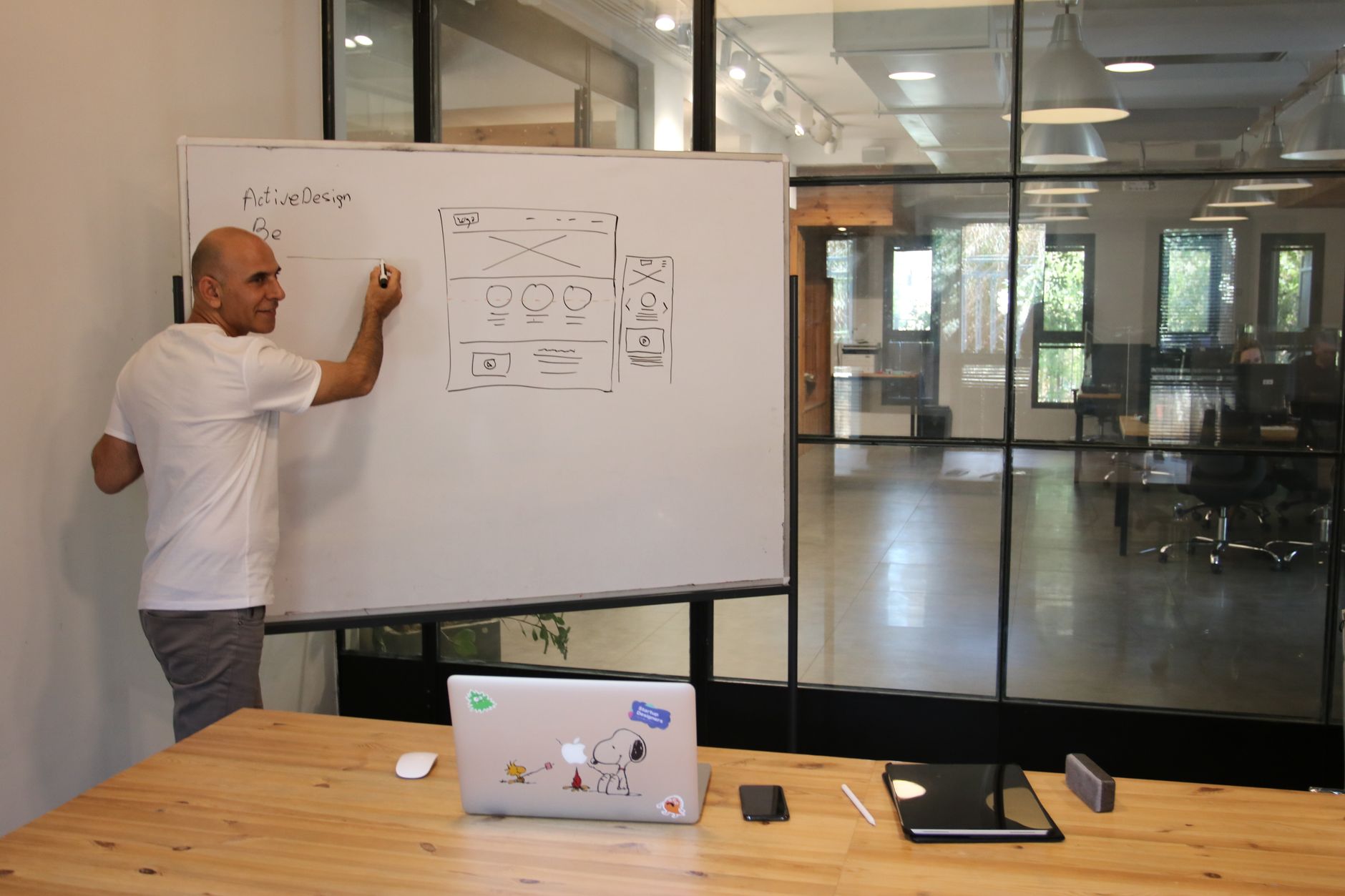
- Prototype the admin UI early (even as wireframes) and test with actual editors before development hardens.
Make the CMS teach itself with guardrails and guidance
A high-UX CMS reduces the need for tribal knowledge. Use field-level validation, helpful microcopy, and previews that match production. In Drupal, invest time in form display configuration and field grouping so editors see what matters in the order they need it; in WordPress, provide reusable block patterns, locked templates, and clear placeholder instructions.
Also design for “safe failure.” If an editor uploads an oversized image or forgets alt text, the CMS should catch it before publish, not after a customer complains. Treat these checks as UX features: they reduce anxiety, rework, and the hidden cost of content debt.
Standardize roles, permissions, and approvals
Permissions are UX: unclear access leads to constant handoffs and workarounds. Define roles by capability (author, editor, publisher, translator, analyst) and align them with content lifecycle stages. Drupal’s strengths in granular permissions can support complex governance, while WordPress typically benefits from simplifying roles and using a small number of well-defined approval steps.
How should you model content to improve UX across channels?
Model content as structured, reusable building blocks rather than as pages. A strong content model makes navigation consistent, search accurate, and personalization feasible. Drupal is naturally suited to fielded content; WordPress can achieve similar outcomes with custom post types, taxonomies, and block-based composition—if you enforce standards and avoid “free-form everything.”
Start with content types and relationships, not templates
A common failure pattern is designing templates first and trying to force content to fit later. Instead, define content types (e.g., Product, Case Study, Location, Policy, Event) and their relationships (Product has Features; Case Study references Industries). This approach improves UX because it enables consistent listings, filters, and internal linking without manual duplication.
Use controlled vocabularies to reduce editorial ambiguity
Taxonomy is where CMS UX often collapses: too many tags, inconsistent naming, and no ownership. Limit vocabularies, define who can create new terms, and provide descriptions and examples. When taxonomy is governed, visitors benefit through better on-site search, clearer navigation, and more accurate related-content modules.
- Create a taxonomy charter: purpose, owners, and approval rules for new terms.
- Use synonyms and redirects where the CMS supports it to handle legacy naming.
- Instrument taxonomy usage: identify rarely used terms and consolidate quarterly.
- Document “when to tag” rules in the CMS UI, not a separate PDF no one reads.
Design for localization and compliance from day one
If you expect multiple languages, regions, or regulated content, encode those needs into the model early: region-specific fields, translation workflow, and content validity dates. Retrofitting localization is expensive and usually harms UX because it creates inconsistent page structures and broken navigation in secondary locales. Drupal’s enterprise adoption patterns often reflect these requirements, while WordPress can still deliver them when planned deliberately.
What front-end UX patterns work best for WordPress and Drupal custom builds?
Front-end UX improves when you standardize layout patterns, keep navigation predictable, and ensure content components are reusable and accessible. WordPress typically benefits from block-based design systems and strict template controls. Drupal benefits from component-driven theming and clear separation between content structure and presentation, enabling consistent experiences across many content types and sites.
Adopt a component library and enforce design tokens
A shared component library (buttons, cards, accordions, tables, forms) reduces UX drift. Define design tokens (spacing, typography, color, breakpoints) and implement them in both front-end code and CMS components. This ensures that when editors build pages, they’re assembling approved patterns rather than inventing new layouts that break consistency.
If you’re building component-rich UIs, align your CMS approach with your broader web development standards so front-end and CMS teams share conventions. For teams using modern UI stacks, it can help to reference patterns from responsive frameworks and component composition; see building responsive web applications with Bootstrap and Vue.js for transferable layout and responsiveness practices.
Make navigation and on-site search part of the CMS design
Navigation is not just menus; it’s also breadcrumbs, related content, filters, and internal linking rules. Define how content is discovered and ensure editors can manage it without hacks. For example, “Related resources” should be driven by controlled taxonomy or explicit references—not manual copy/paste links that degrade over time.
Use preview and staging that matches production
Preview UX is often overlooked, but it directly impacts publishing confidence and content quality. Ensure previews reflect real templates, real styles, and responsive breakpoints. When editors trust preview, they publish faster and make fewer risky workarounds like embedding screenshots of tables or copying HTML from email.
How do you keep custom CMS builds fast and reliable (performance as UX)?
Treat performance as a first-class UX requirement: define budgets, measure continuously, and architect for caching and efficient rendering. In WordPress, performance often hinges on theme quality, plugin discipline, and caching strategy. In Drupal, performance depends on caching layers, render optimization, and careful use of modules and views—especially at scale.
Set performance budgets tied to user journeys
Instead of vague goals like “make it faster,” define budgets per template and journey: homepage, listing pages, article pages, and logged-in admin screens. Track metrics that reflect perceived speed (e.g., render time and interactivity), and make budgets part of the definition of done. This prevents last-minute performance triage that compromises UX.
Optimize caching and rendering for both anonymous and authenticated users
Caching strategy should reflect who is visiting and what changes frequently. Anonymous traffic can often be served through aggressive page caching and CDN layers; authenticated editors need fast admin screens and previews without stale content. Drupal’s caching system can be powerful when configured correctly, while WordPress typically relies on a combination of caching plugins/services and efficient theme code.
Reduce extension bloat: fewer plugins/modules, better outcomes
Extensions are leverage, but also risk: more code paths, more updates, more conflicts, and more performance variability. WordPress’s plugin ecosystem is vast—WordPress.org’s documentation notes nearly 60,000 free plugins in the repository (source). For UX, the goal isn’t “more features,” it’s stable, predictable behavior and a clean editorial experience.
How do you build accessibility into WordPress and Drupal UX from the start?
Build accessibility into your CMS by enforcing accessible components, requiring meaningful content inputs (like alt text), and testing both front-end and admin workflows. Accessibility is not only a compliance concern; it’s a usability multiplier that improves clarity, keyboard navigation, and content quality. The CMS should make the accessible choice the default choice.
Bake accessible components into the design system
If your button, modal, accordion, and form components are accessible by default, editors can’t accidentally publish inaccessible UI patterns. Maintain a vetted component library with documented usage rules. Treat these components as UX building blocks and version them like software so fixes propagate consistently across templates and pages.
Make accessibility checks part of publishing, not policing
Editorial UX improves when checks are immediate and actionable: missing alt text prompts at upload time; heading structure guidance appears in the editor; link text warnings show before publish. This shifts accessibility from after-the-fact audits to everyday content hygiene. It also reduces friction between content teams and compliance stakeholders.
Test admin UX with keyboard-only and screen readers
Don’t limit testing to public pages—editors spend hours in admin UI. Validate that core tasks (create, edit, preview, schedule, approve) work with keyboard-only navigation and common assistive technologies. When admin UX is accessible, you reduce operational risk and expand who can contribute content effectively.
How do you design governance and security without harming UX?
Good governance and security should feel like clarity, not bureaucracy. Define who can do what, standardize workflows, and automate the checks that prevent risky publishing. In WordPress and Drupal, the most UX-friendly security posture is one that is consistent: predictable permissions, controlled extension management, and a release process that keeps the platform current without surprise breakages.
Create a governance model editors can understand
Governance fails when it’s undocumented or enforced inconsistently. Publish a lightweight “rules of the road” inside the CMS: naming conventions, taxonomy rules, image standards, and approval expectations. When editors know the rules, they make better decisions faster—and UX improves through consistency.
Treat updates as a UX practice (stability is part of experience)
A CMS that is outdated becomes fragile: plugins/modules conflict, admin screens break, and publishing slows. Keep core and extensions current with a predictable cadence and staging validation. Drupal’s documentation emphasizes that its user guide is kept up-to-date with the current major version of core software (currently Drupal 11) (source), which is a useful reminder: align your internal docs and training with the version you actually run.
Secure-by-default patterns that preserve usability
Security controls should reduce risk without adding daily friction. Use single sign-on where possible, enforce least privilege, and separate environments so experimentation doesn’t happen in production. If you work in regulated environments, align CMS governance with broader security practices; the approach in SaaS security in healthcare offers transferable principles for protecting sensitive data without slowing delivery.
What are best practices for extending WordPress and Drupal without breaking UX?
Extend WordPress and Drupal by prioritizing maintainable, well-supported plugins/modules, isolating custom code, and designing integrations as products with owners. The UX goal is consistency: every extension should match your editorial patterns, design system, and performance expectations. When extension decisions are ad hoc, UX becomes fragmented and support costs rise.
Plugin/module selection: choose for fit, not popularity
Use a formal evaluation checklist before adopting an extension: compatibility with your CMS version, update frequency, documentation quality, and whether it supports your UX patterns. In WordPress, the sheer availability of plugins (nearly 60,000 free plugins in the repository, per WordPress.org documentation) (source) makes governance essential. In Drupal, module choices should be similarly deliberate, especially for workflow and content modeling features.
- Define “must-have” UX criteria: accessible UI, predictable editor screens, and clean uninstall paths.
- Prefer fewer, well-governed extensions over many overlapping ones.
- Assign an owner for each extension: who updates it, tests it, and decides when to replace it.
- Document configuration decisions so environments stay consistent.
Build custom features as composable services when appropriate
Not every capability belongs inside the CMS. Search, personalization, and asset processing can be implemented as external services with stable APIs, while the CMS remains the system of record for content. This can improve UX by reducing admin complexity and keeping the CMS focused on publishing, but only if the integration is resilient and observable.
Align backend architecture with maintainable development practices
CMS UX degrades when engineering teams can’t safely ship improvements. Standardize coding standards, automated tests, and deployment pipelines so iterative UX enhancements don’t become risky. If your team is comparing PHP ecosystems for custom development around CMS platforms, see PHP frameworks for scale for architectural considerations that often intersect with CMS integrations.
How do you measure and continuously improve UX in a custom CMS?
Measure CMS UX with task-based metrics and operational signals, then ship improvements in small releases. Track both visitor outcomes (findability, speed, accessibility issues) and editor outcomes (time-to-publish, revision churn, support tickets). The most effective teams treat the CMS as a product with a roadmap, not a one-time project.
Define a CMS UX scorecard for editors and admins
Create a scorecard that reflects daily work: average time to publish a standard page, number of steps in approval, percentage of content using approved components, and frequency of rollback incidents. Pair quantitative signals with qualitative feedback from monthly editorial roundtables. This provides a stable way to prioritize improvements without relying on the loudest complaint.
Instrument content quality and governance drift
Content debt is measurable: missing metadata, inconsistent taxonomy, broken internal links, and pages without owners. Build automated audits and dashboards so issues are visible before they become UX problems. When you treat content quality as an operational metric, you reduce the long-term cost of maintaining a large site.
Run usability tests on the admin UI, not just the website
Admin usability testing can be lightweight and high-impact: give editors realistic tasks and observe where they hesitate or make mistakes. Focus on friction points like media handling, preview, scheduling, and complex forms. Improvements here often deliver faster ROI than purely visual front-end changes because they reduce labor costs and publishing delays.
Practical examples: UX improvements you can implement in WordPress and Drupal
The most reliable CMS UX wins are usually specific, workflow-based changes rather than sweeping redesigns. The examples below are illustrative scenarios that show how small architecture and UI decisions can remove friction for editors and improve consistency for visitors. Use them as patterns to adapt, not as one-size-fits-all prescriptions.
Example 1 (illustrative): WordPress block patterns for a product marketing team
A B2B product team needs landing pages that look consistent but change weekly. Instead of giving editors unrestricted layout freedom, you create a small set of locked block patterns: hero, proof points, pricing table, FAQ, and CTA band. Editors choose patterns, fill in fields, and preview confidently—cutting rework and improving brand consistency.
Example 2 (illustrative): Drupal structured content for a university with many departments
A university runs dozens of departmental sites with shared templates but different content owners. In Drupal, you define consistent content types (Programs, Faculty, Events) with required fields and controlled vocabularies, then apply role-based permissions so each department can publish safely. Visitor UX improves through consistent navigation and listings; editor UX improves through predictable forms.
Example 3 (illustrative): Reducing “plugin sprawl” in WordPress to stabilize UX
A site accumulates overlapping plugins for forms, SEO, redirects, and performance, leading to inconsistent admin screens and unpredictable behavior. You audit plugins, remove duplicates, and standardize on a minimal set aligned with your editorial workflows. Because WordPress has a huge plugin ecosystem (WordPress.org notes nearly 60,000 free plugins) (source), this governance step often delivers immediate UX and reliability gains.
Example 4 (illustrative): A content “sunset” workflow to prevent stale pages
A services firm struggles with outdated pages that harm trust and search performance. You add fields for content owner and review date, plus automated reminders and a simple status flow: Draft → Review → Published → Needs Review → Archived. This improves content governance UX by making ownership explicit and reducing the hidden work of chasing updates.
Example 5 (illustrative): Designing a faster editorial workflow with clear handoffs
A global marketing team has delays because approvals happen in email threads. You implement a CMS-native workflow: authors submit for review, editors comment in-context, and publishers schedule releases. The UX improvement is not just speed—it’s reduced uncertainty, fewer version conflicts, and a clear audit trail for who approved what and when.
A practical comparison: WordPress vs Drupal UX levers (what to optimize first)
WordPress and Drupal can both deliver excellent UX, but the highest-leverage improvements differ. WordPress projects often win by enforcing consistent blocks, reducing plugin complexity, and optimizing theme performance. Drupal projects often win by refining structured content, permissions, and workflow configuration—then ensuring the front-end component system stays consistent across many content types.
Use the table below as a prioritization guide. It’s not about which platform is “better”—it’s about where you’ll typically get the fastest UX return on investment given each system’s strengths and common failure modes.
| UX area | WordPress: prioritize | Drupal: prioritize |
| Editorial consistency | Locked templates, reusable blocks, clear custom post types | Content types/fields, form display tuning, validation rules |
| Governance & roles | Simplified roles + lightweight approvals | Granular permissions + formal workflows for complex orgs |
| Extension strategy | Minimize plugins; choose well-supported ones; document configs | Curate modules; avoid overlapping features; standardize patterns |
| Performance | Theme quality, caching/CDN, plugin audit | Caching configuration, render optimization, view/query discipline |
| Multi-site / complex architecture | Possible, but needs strong standards and ops discipline | Often a natural fit for structured, governed multi-site needs |
If you’re staffing or budgeting for CMS UX improvements, connect platform choices to talent availability and retention. A practical way to benchmark roles and plan hiring is to consult IT salary data by city and role and align compensation bands with the skills you need (UX engineering, Drupal configuration, WordPress performance, QA automation).
Implementation checklist: next steps to improve UX in your custom CMS
Use this checklist to move from intent to execution. It’s designed to be actionable for teams working in either WordPress or Drupal, and it focuses on the highest-impact steps that improve both visitor and editorial UX. Treat it as a backlog starter: assign owners, define acceptance criteria, and ship improvements in small releases.
- Run a 2-hour workflow mapping session with editors: list top tasks, pain points, and “workarounds” currently used.
- Audit your content model: identify duplicated content, free-form fields that should be structured, and taxonomy sprawl.
- Define 8–12 reusable components and patterns; implement them as a governed library with design tokens.
- Add guardrails: required fields, inline guidance, and preview that matches production across breakpoints.
- Create an extension governance policy: evaluation checklist, ownership, update cadence, and deprecation plan.
- Set performance budgets per template and enforce them in CI where possible; prioritize caching and render efficiency.
- Embed accessibility into publishing: component defaults, content checks (alt text, headings), and admin UX testing.
- Standardize roles and approvals: least privilege, clear handoffs, and a documented publishing lifecycle.
- Instrument UX: editor task timing, content quality audits, search success signals, and support ticket categories.
- Plan continuous improvements: monthly editorial roundtable + quarterly CMS UX releases with measurable goals.
If you need implementation partners or want to benchmark vendors for CMS UX work, start with a trusted directory like the verified IT company catalog and evaluate providers against your specific UX acceptance criteria. For teams that want to scale delivery without losing quality, adopting an iterative process (clear backlog, demos, feedback loops) is often as important as the platform itself; see boosting business growth with Scrum in software development for operational practices that map well to CMS roadmaps.